Beta on TestFlight

Plan the day you can finish.

Veldar learns how long things really take you, checks your plan against it, and helps you fix the day before you fall behind.

A beta for iPhone with iOS 17 or later. Coming soon to the App Store.

  • Works without an account
  • Learning stays on your iPhone
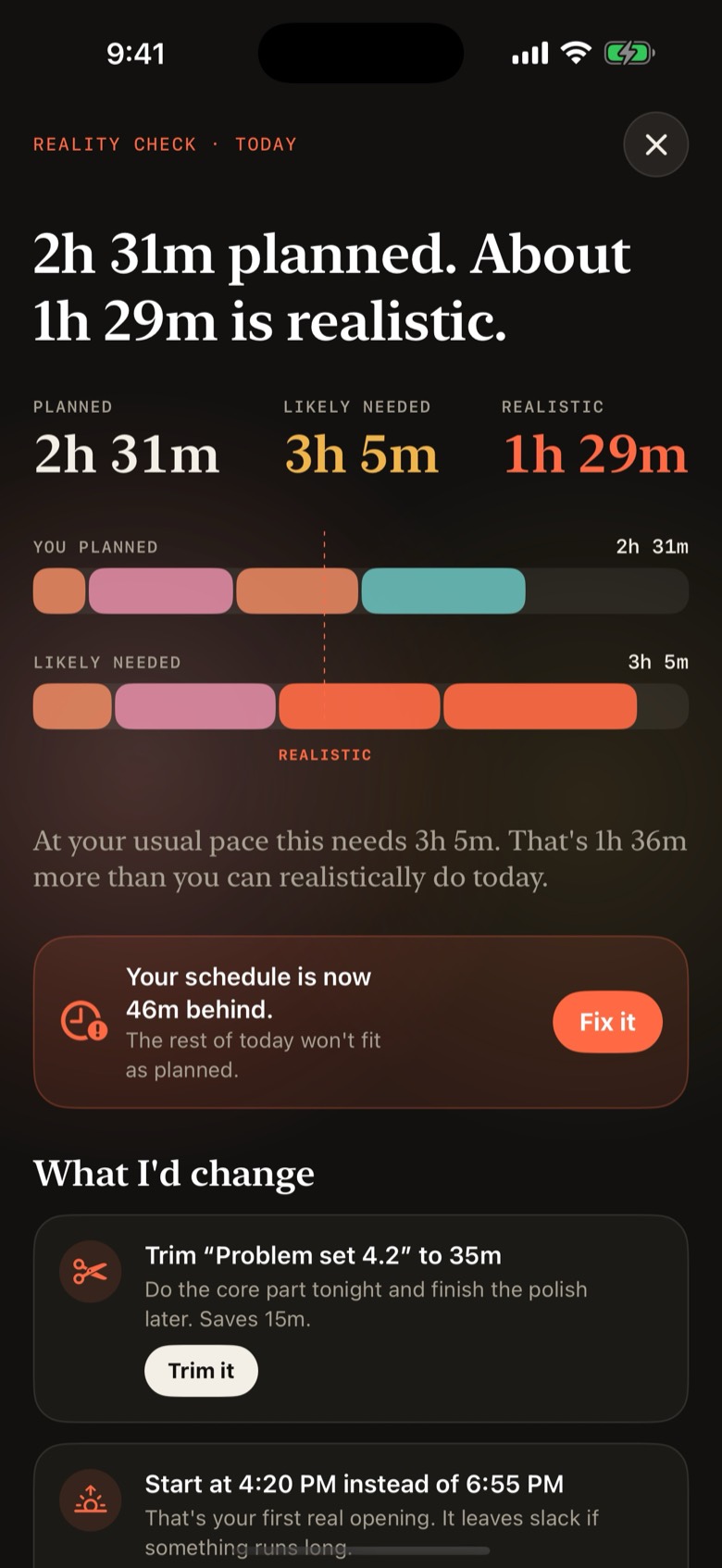
The Reality Check screen in Veldar. It reads: 2h 31m planned, about 1h 29m is realistic. Three figures show planned 2h 31m, likely needed 3h 5m and realistic 1h 29m, above two bars that compare them.

Screenshot of the app with sample data.

How it works

Three steps, one honest plan.

The planning part never needs an account. Everything below happens on your iPhone.

  1. Add what is due

    Type a task, pick a deadline and make your best guess at how long it will take. A simple reminder needs only a title.

  2. See the reality

    Veldar checks your guess against how long similar tasks took you. Reality Check shows what you planned, what it will likely take and what is realistic.

  3. Fix the day

    Apply a suggested change, let Plan my day build the schedule, or run Schedule Rescue when you fall behind. Nothing changes until you say so.

Features

What Veldar does

Tell Veldar what is due. It shows what the day can realistically hold, and helps you change the plan when it cannot.

Screenshots show the app with its optional demo data, a made-up semester. Every number is an example, not a result.

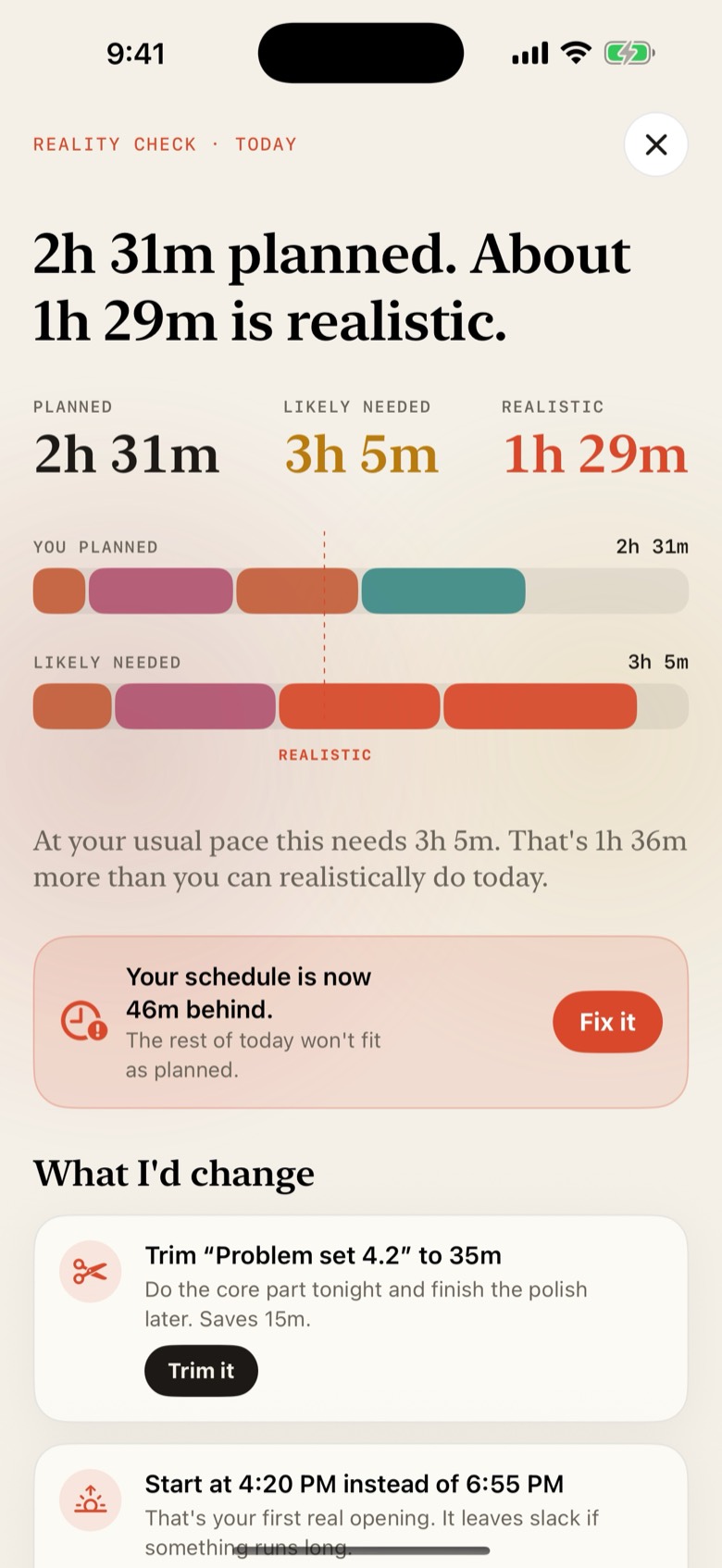
Reality Check in Veldar. A banner says the schedule is now 46 minutes behind, and under the heading What I'd change a suggestion offers to trim Problem set 4.2 to 35 minutes, with a Trim it button.

Reality Check

See how much of your plan is realistic.

Your plan sits next to what it will likely take you and what the day can actually hold. When the day is too full, Veldar suggests specific changes you can apply with a tap.

  • Three numbers: planned, likely needed and realistic.
  • Fixes such as Trim it, Move it or Start earlier. Nothing changes until you tap one.
  • It starts from average times and becomes yours as you finish tasks.
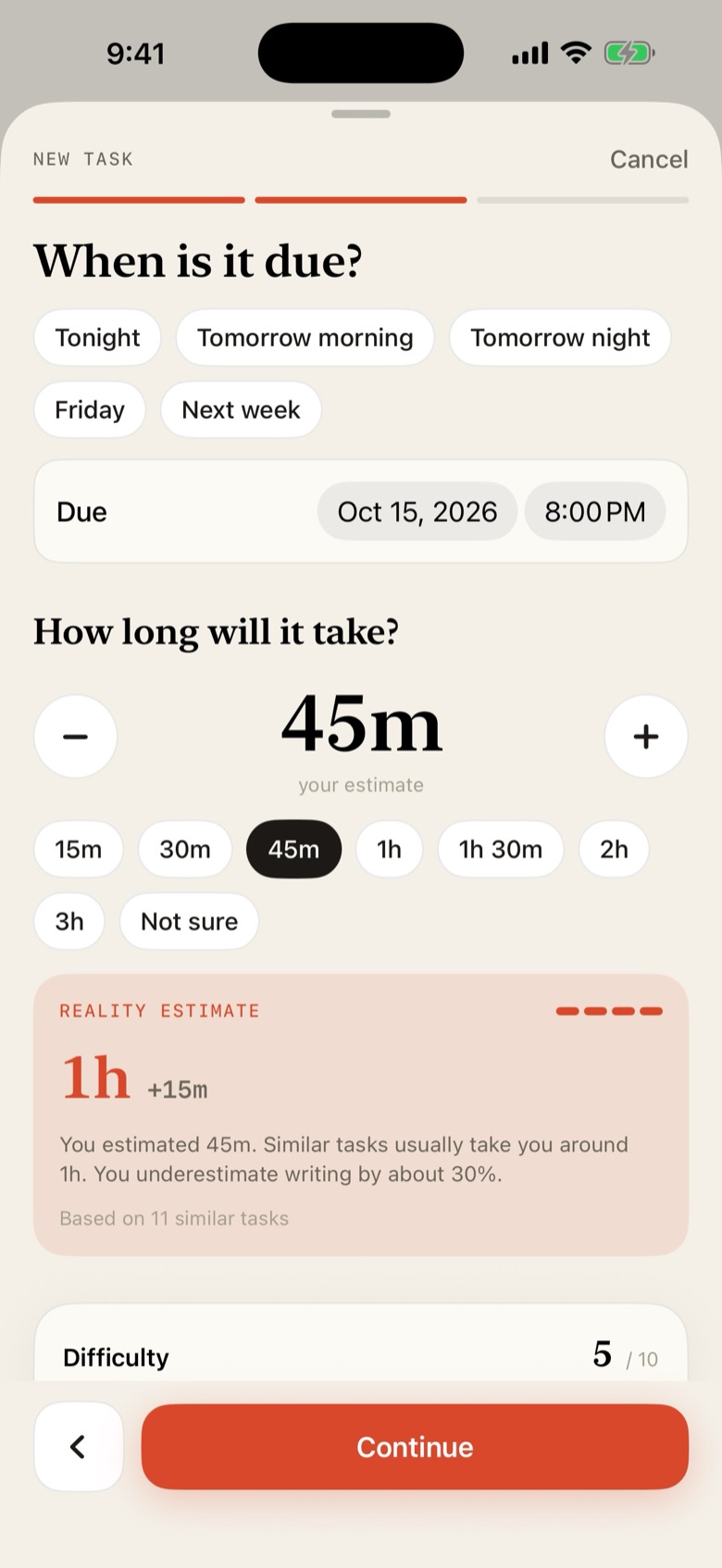
Veldar's new task screen. The estimate is set to 45 minutes, and a Reality Estimate card says similar tasks usually take around 1 hour, based on 11 similar tasks.

Learns your pace

Your guess, corrected by your own history.

Log how long a task really took and the next estimate gets closer. When you add a task, Veldar shows what similar tasks have taken you and how many it based that on.

  • It adjusts for the kind of work, the class, the difficulty and the time of day.
  • It learns how long you need to settle in after you are free or after an event.
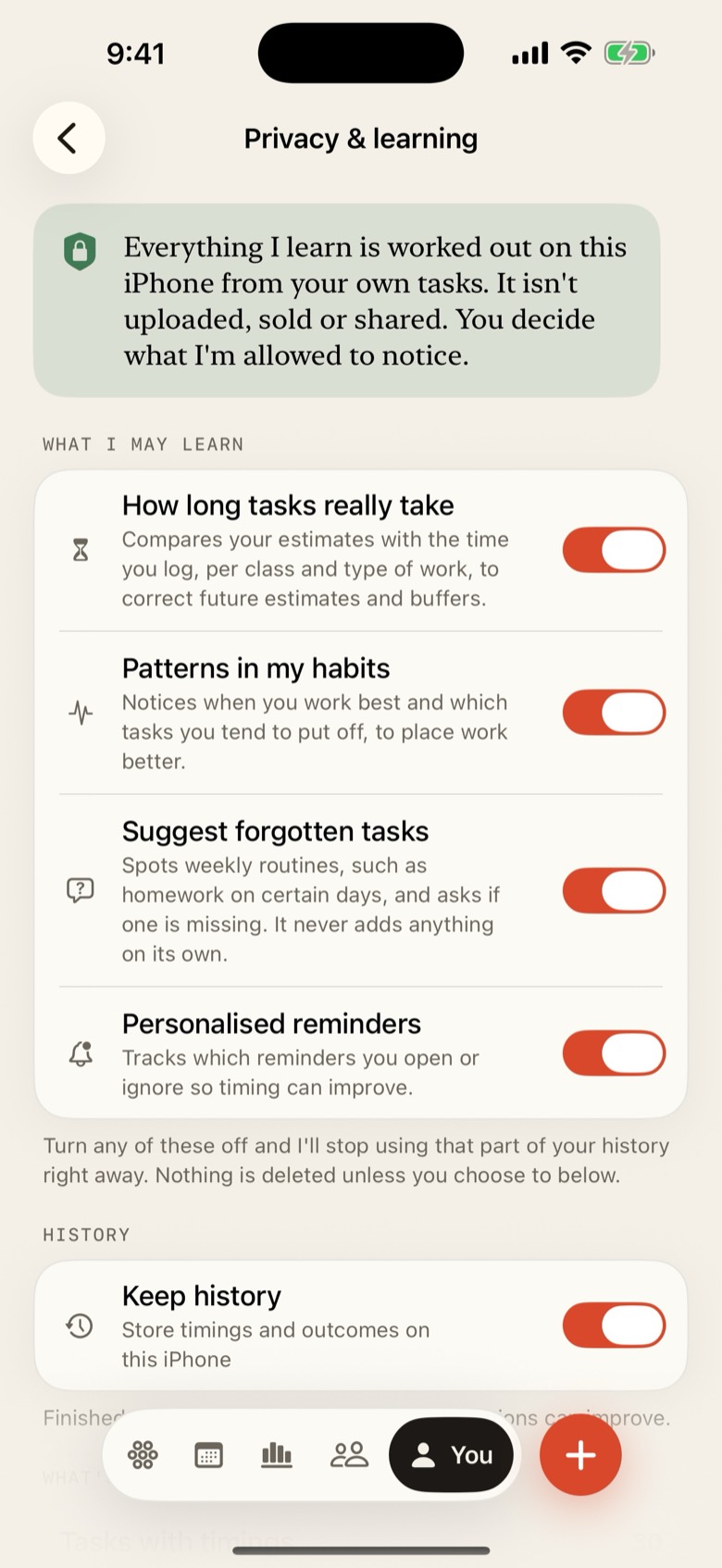
  • Worked out on your iPhone from your own tasks. Switch it off any time in You, then Privacy & learning.
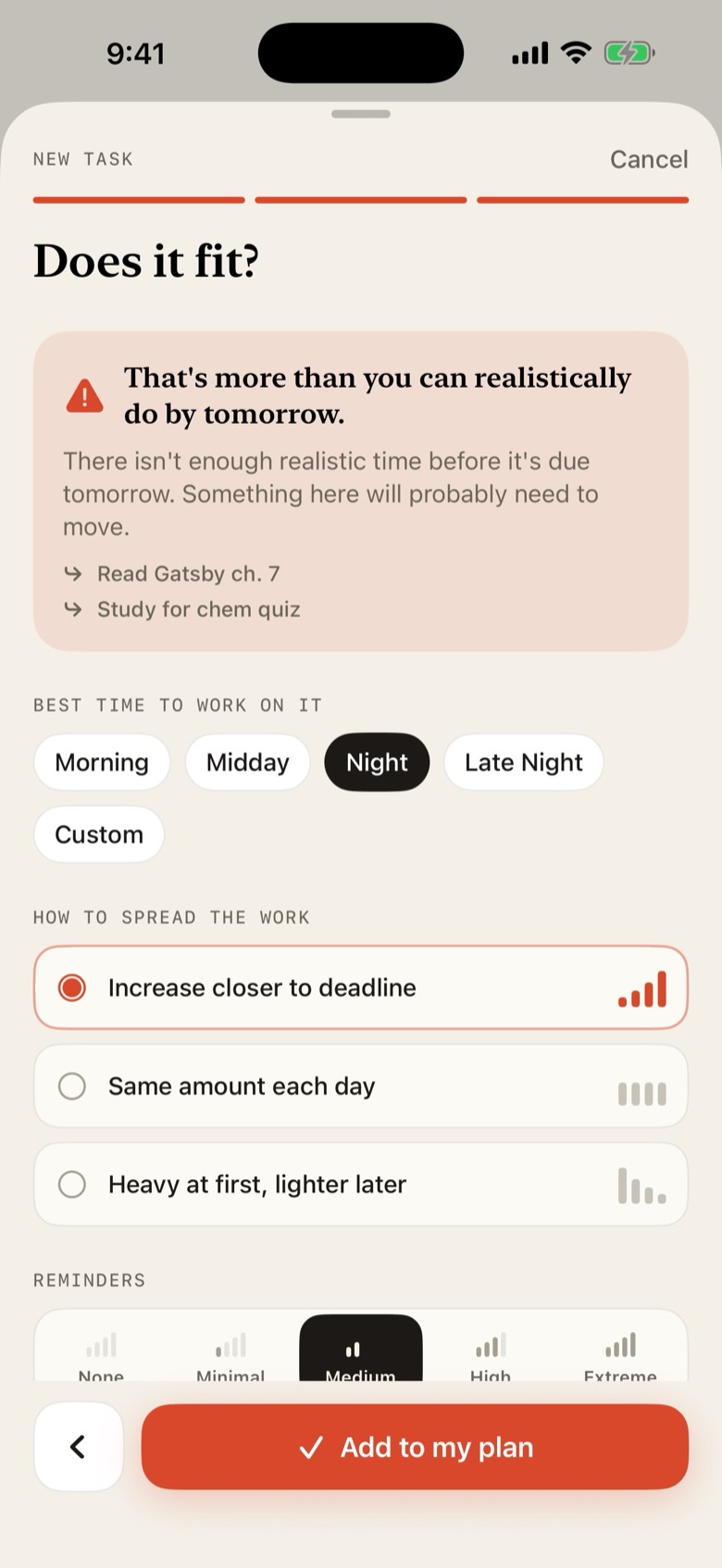
The Does it fit step of adding a task in Veldar. A warning says it is more than you can realistically do by tomorrow and lists two tasks that would need to move, above choices for the best time to work and how to spread the work.

Fit check

Know before you say yes.

While you add a task, Veldar tells you whether it realistically fits before the deadline, and which tasks would have to move to make room.

  • A plain warning, such as “That’s more than you can realistically do by tomorrow.”
  • Choose the best time of day, and whether to spread the work evenly, closer to the deadline or heavy at first.
  • You still decide whether it goes into your plan.
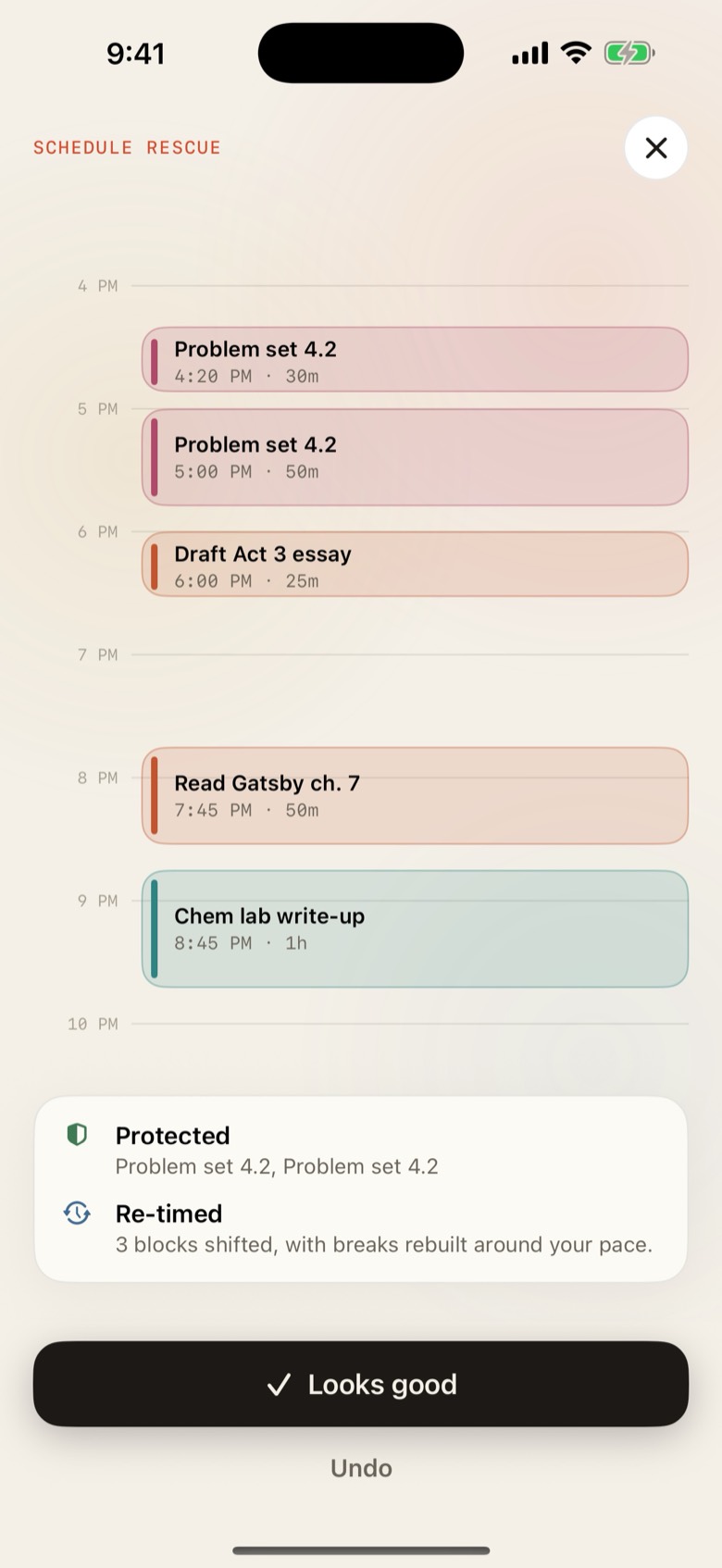
Veldar's Schedule Rescue result. A timeline from 4 PM to 10 PM shows five rebuilt work blocks, and a panel says which blocks were protected and that three were re-timed, above Looks good and Undo buttons.

Schedule Rescue

Running behind? Rebuild the rest of today.

When you are 15 minutes or more behind, Today offers a fix. Veldar rebuilds what is left of the day with the nearest deadlines first and moves what can wait.

  • It shows what it protected and what it re-timed, and rebuilds your breaks around your own pace.
  • A task with a close deadline goes first.
  • Not what you wanted? Tap Undo and everything goes back.
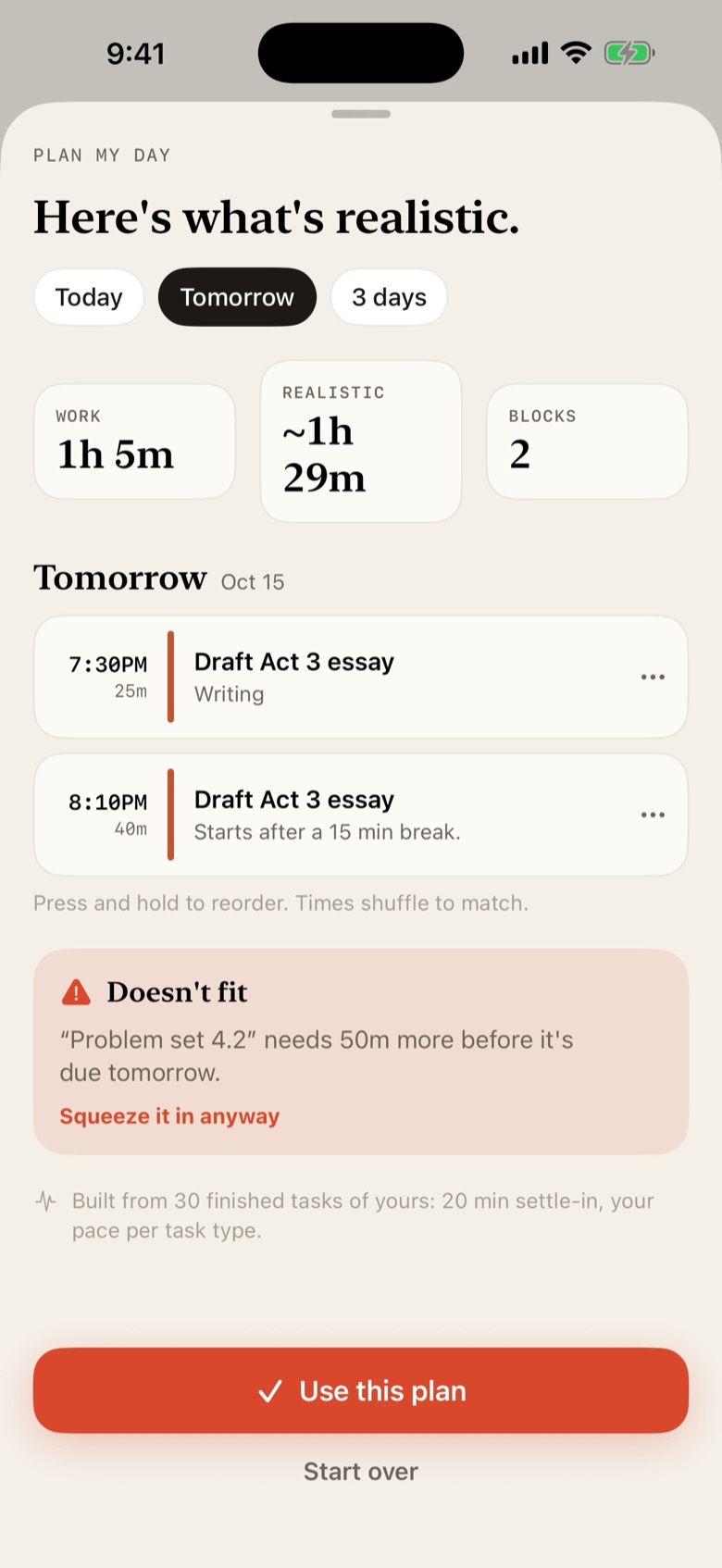
Veldar's Plan my day screen for tomorrow. Two work blocks are listed with times, a note says Problem set 4.2 doesn't fit, a hint says press and hold to reorder, and a Use this plan button sits at the bottom.

Plan my day

A day built from your tasks, deadlines and free time.

Choose Today, Tomorrow or 3 days. Veldar lays out realistic blocks, and you can edit the plan before you use it.

  • Press and hold to reorder. The times shuffle to match.
  • If something does not fit, it says so and leaves the choice to you.
  • Built from your own finished tasks: your pace for each kind of work and your settle-in time.
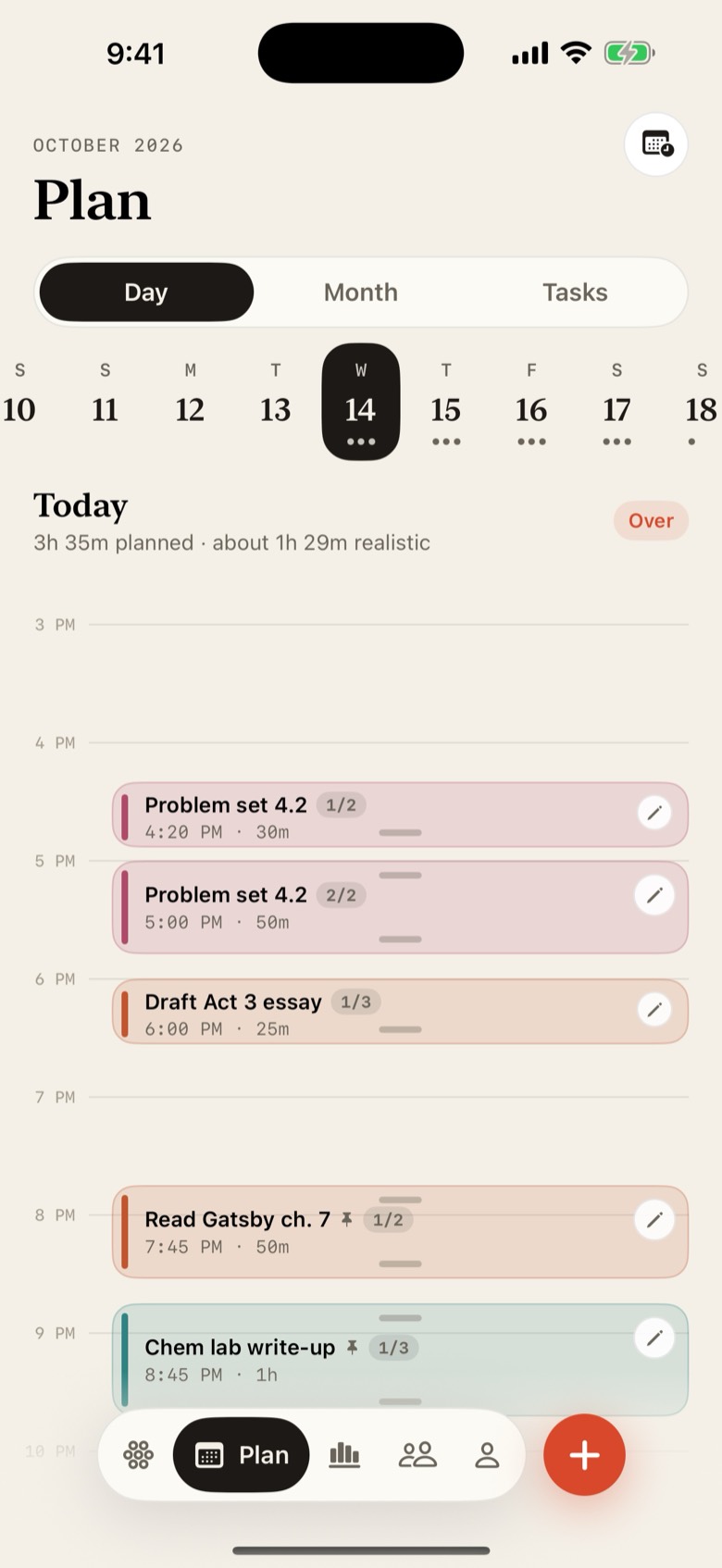
The Plan tab in Veldar. A day timeline from 3 PM to 10 PM shows five colour-coded work blocks with edit buttons and resize handles, two of them pinned, under a summary of 3h 35m planned and about 1h 29m realistic.

Your schedule, your call

Move any block. Veldar explains what it does.

Press and hold a work block to move it to another time or day, or drag its top or bottom edge to resize it. Veldar says in plain words what the change does, then you choose.

  • Pick Keep Here or Use Suggested Time.
  • Blocks you place by hand are pinned, and the rest of the plan works around them.
  • Open Edit block to set the exact day, start, end and length.
Veldar's Insights tab. A card says 30 tasks timed, a chart shows plan realism for the last 7 days at 71 percent with planned and done bars, and a pattern says you finish hard tasks fastest between 4 and 6 PM.

Insights

Patterns from your own work.

See when you work fastest, how your estimates compare with what tasks really took, and how many planned blocks you finished in the last 7 days.

  • Plan realism for the last 7 days: planned blocks next to the ones you finished.
  • Each pattern says how many of your tasks it is based on.
  • Worked out on your iPhone and never uploaded.
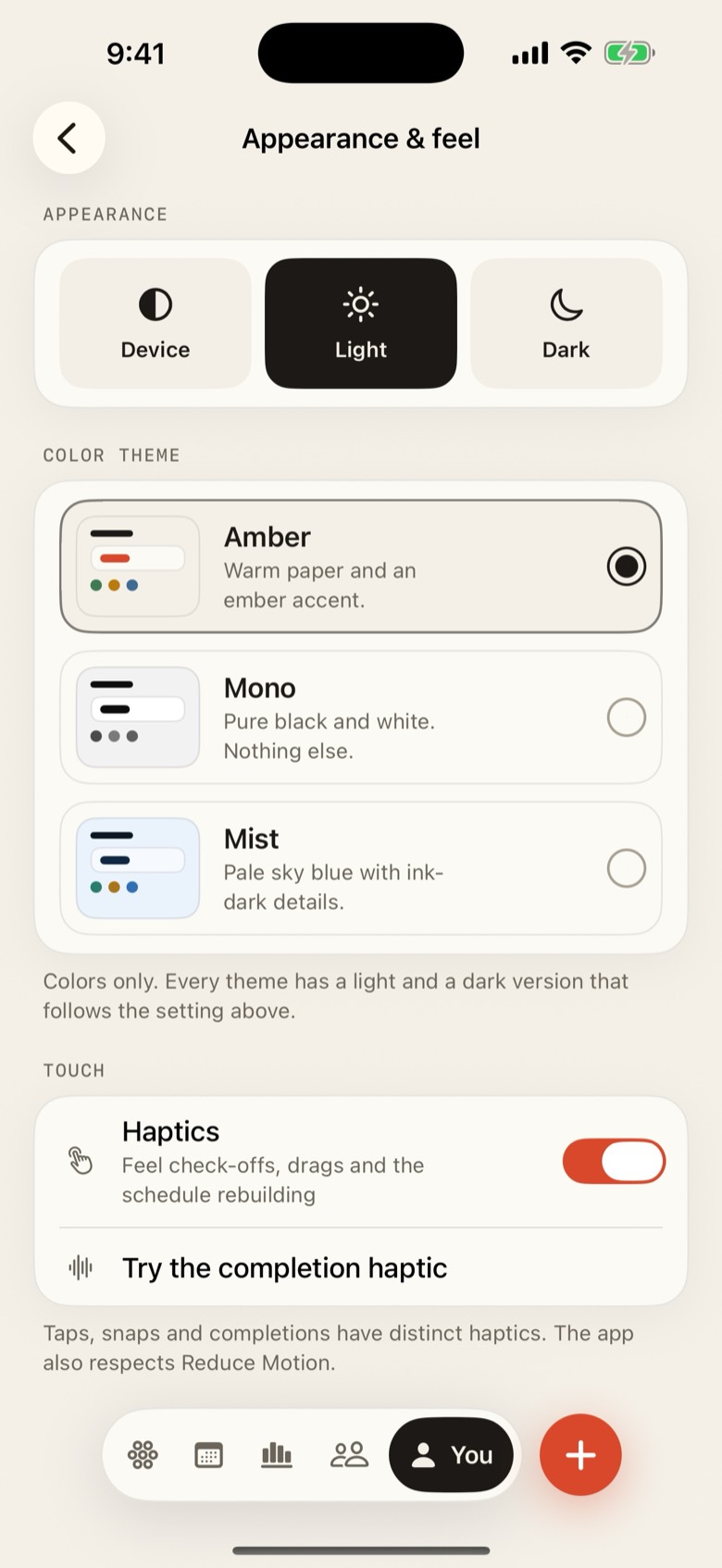
Veldar's Appearance and feel settings. Device, Light and Dark choices sit above three color themes named Amber, Mono and Mist, and a Haptics switch.

Look and feel

Three themes, each in light and dark.

Amber is the warm paper look, Mono is pure black and white, and Mist is pale sky blue. Follow your iPhone’s setting or pick Light or Dark yourself.

  • Swipe between the five tabs and they follow your finger.
  • Distinct haptics for taps, drags and completions. You can switch them off.
  • Reduce Motion is respected.

And the details

The smaller things that add up.

  • Catches what you forgot

    Spots weekly routines, deadlines with no time set aside and overdue tasks. It asks first and never adds anything on its own.

  • Smart reminders

    Task reminders can include a time estimate and arrive earlier if you tend to ignore last-minute ones. Start, snooze or finish from the notification.

  • Reads your calendar

    Plan around events from your iPhone calendar. Veldar only reads it. Protect, overlap, move or ignore each event.

  • Lock Screen timer

    A focus timer on your Lock Screen and, on iPhones that have one, the Dynamic Island. Pause or resume there, and tap Done to log your time.

  • Daily streak

    A streak day counts when you open Veldar. Optional reminders, at most three, only on days it can still be saved. An optional leaderboard is off by default and needs an account.

  • Grades, if you want them

    Enter a grade after a test or assignment. Patterns in your own results appear only with enough data, and are never worded as predictions.

  • Tasks and simple reminders

    A task is planned work with an estimate. A reminder is just a title and, if you want, a day or a time. Reminders never feed the learning.

  • Help getting started

    For big tasks, or ones you keep postponing, Veldar offers a small first step.

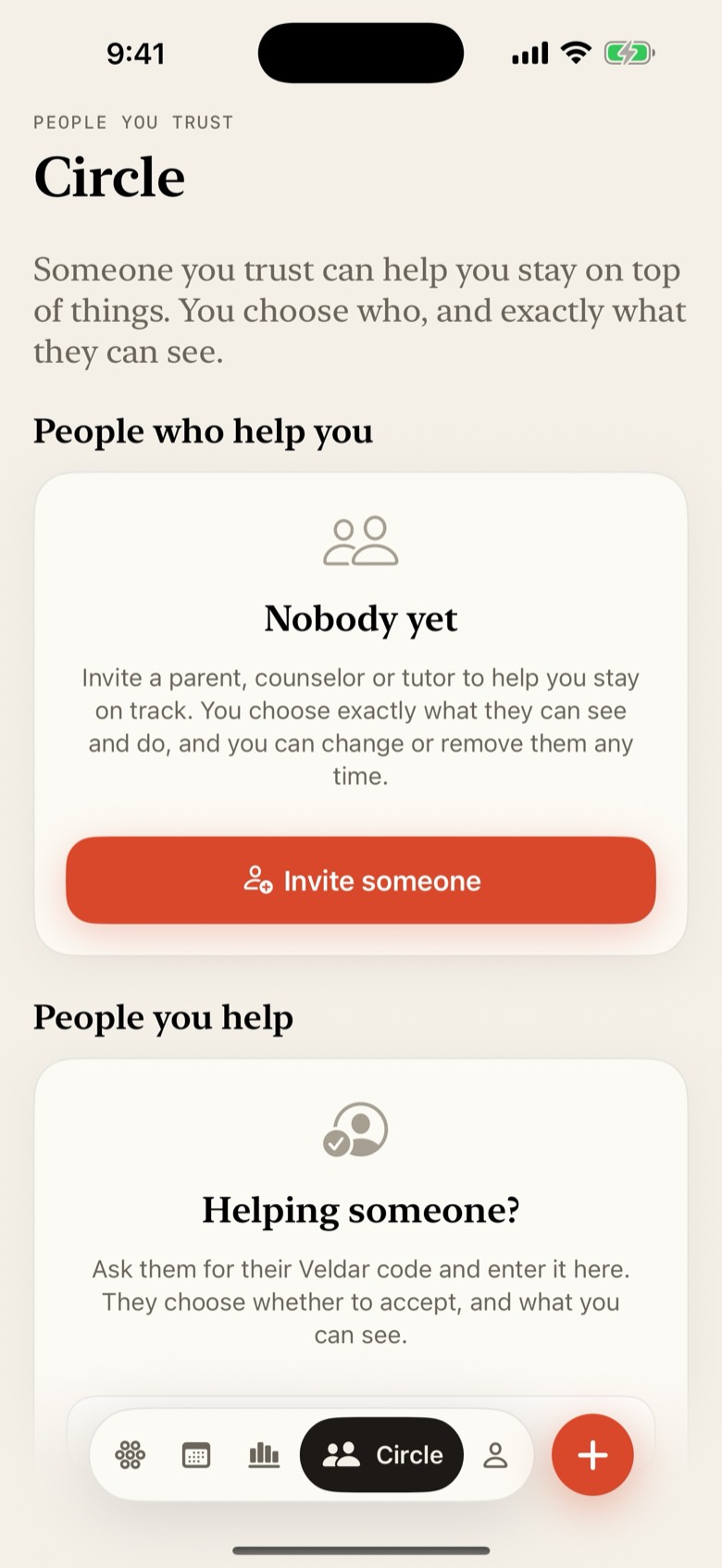
The Circle tab in Veldar. Under the line that someone you trust can help you stay on top of things, a card says Nobody yet with an Invite someone button, and a second card asks Helping someone? to enter a code.

Circle, optional

Help from people you choose.

Invite a parent, counselor, tutor, teacher, coach or mentor with a code or a QR code. You stay in charge: nothing is shared until you accept, and you decide what each person can do.

Seven permissions, set per person

  • View tasks
  • Add tasks
  • Add reminders
  • Suggest schedule changes
  • See when things are finished
  • Important alerts
  • View grades (off unless you turn it on)
  • You can change every permission, for each person, at any time.
  • A helper never sees your notes, calendar events or location.
  • Anything others add is labelled with who added it, and you can remove anyone at any time.
  • Alerts reach a helper when they open or refresh Veldar, not instantly.

Circle needs an account, which uses your email and a one-time code and is for people 13 and older. Veldar does not check who anyone is, so only accept people you know.

Private by design

What Veldar learns stays on your iPhone.

Your tasks, plans, streak and everything Veldar learns about how you work are stored on your iPhone. No outside service is used to work it out.

  • Learning on your phone

    Estimates, patterns and suggestions are worked out on your iPhone from your own tasks.

  • No ads, no tracking

    No advertising, no tracking and no third-party analytics or crash-reporting code. We do not sell your information.

  • Accounts are optional

    Without one, nothing you enter leaves your iPhone. An account is only for the streak leaderboard and Circle.

  • You hold the controls

    Switch each kind of learning off, forget what it learned, delete your history or reset the whole app.

If you do sign in, a small amount goes online, and the privacy policy lists exactly what. You can delete your account, and everything stored online for it, inside the app.

Read the privacy policy

Veldar's Privacy and learning screen. A note says everything it learns is worked out on this iPhone from your own tasks and is not uploaded, sold or shared, above separate switches for each kind of learning.

FAQ

Questions, answered.

Short answers from our support page. If yours is not here, the support page has more, and you can always email us.

Open the support page

Is Veldar on the App Store?

Not yet. Veldar is in beta, and you install it through Apple’s TestFlight app. It needs an iPhone with iOS 17 or later.

How do I install the beta?
  1. Use an iPhone with iOS 17 or later.
  2. Install TestFlight from the App Store. It is a free app made by Apple.
  3. On your iPhone, open this link: https://testflight.apple.com/join/gZSBm5eD
  4. Tap Accept if TestFlight asks, then tap Install.
  5. Open Veldar from your Home Screen.

If the link does not work, check that you opened it on your iPhone, not on a computer. Beta builds stop working after 90 days. When a newer build is available, TestFlight shows an Update button next to Veldar.

Do I need an account?

No. Tasks, planning, reminders, insights and your streak all work without an account, and nothing leaves your iPhone. You only need an account for the streak leaderboard and for Circle.

Does Veldar work offline?

Yes. Only signing in, the leaderboard and Circle need an internet connection.

What is Reality Check?

It compares the plan you made with how much you can realistically get done. It shows planned (the time your plan sets aside), likely needed (how long that work will probably take you, using how long similar tasks took you before) and realistic (how much the day can actually hold).

These are suggestions based on your own history. They can be wrong, and they are not a promise that you will finish on time.

What does Veldar do with my calendar?

Veldar only reads your calendar so it can plan around your events. It never writes to it. Events are not uploaded and no helper can see them. You can turn it on or off in You, then Calendars.

How does Circle work?

Circle lets a parent, counselor, tutor, teacher, academic coach, mentor or someone you trust help you. You stay in charge: nothing is shared until you accept, and you decide exactly what each person can do. You can remove anyone at any time. The support page has the steps.

Who can make an account?

Online accounts, for the streak leaderboard and Circle, are only for people who are 13 or older. Veldar works without an account at any age, and nothing leaves the phone.

How do I delete my data?

On your iPhone, open You, then Privacy & learning. You can switch a learning feature off, forget what Veldar has learned, delete finished tasks and history, or reset the whole app. To delete an online account, open You, then Veldar account, then Delete my account. This removes your account, your username, your leaderboard standing, your Circle connections and anything else stored online for you. Delete your account before you delete the app. The support page has the details.

How do I send feedback about a bug?

In the TestFlight app, tap Veldar, then tap Send Beta Feedback. You can also email hello@getveldar.com and tell us what you did, what you expected, what happened instead, your iPhone model and your iOS version. Please do not include private details such as other people’s tasks or grades.

Try Veldar on your iPhone.

Join the TestFlight beta and see how much of your plan is realistic. Tell us what felt confusing or slow. That is what the beta is for.

You need an iPhone with iOS 17 or later and Apple’s free TestFlight app.